
Unclutter 2.3 is here, ready for macOS 27.
We’ve made improvements to almost every part of the app, refining how Unclutter looks, feels, and works.
The result is a more capable, more comfortable Unclutter that feels right at home on your Mac — while staying true to its simple, uncluttered nature.
A Fresh Look
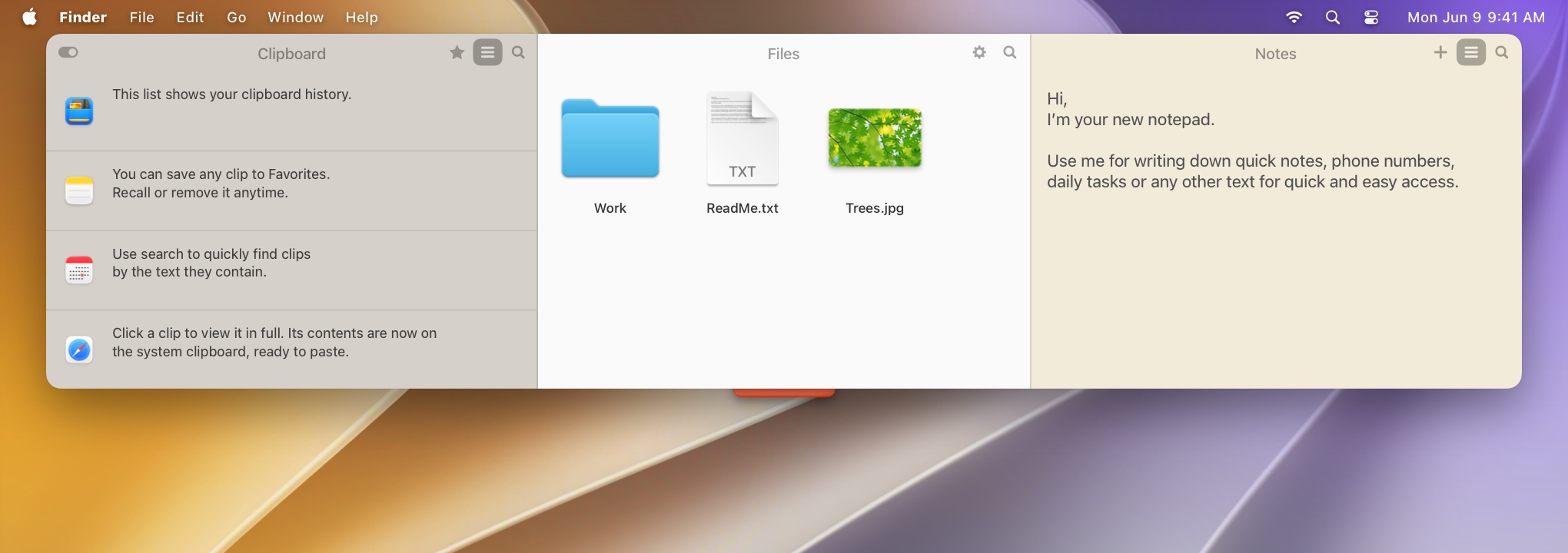
The first thing you’ll notice is that Unclutter can now take up as much horizontal space as you like. But there’s more to it: you can now easily resize the window by dragging any edge or corner, creating a layout that feels right. And as before, you can always use the dividers between panels to give each one the space it needs.
Redesigned toolbars, icons, shadows, and menus — all fine-tuned for a more native and consistent look.
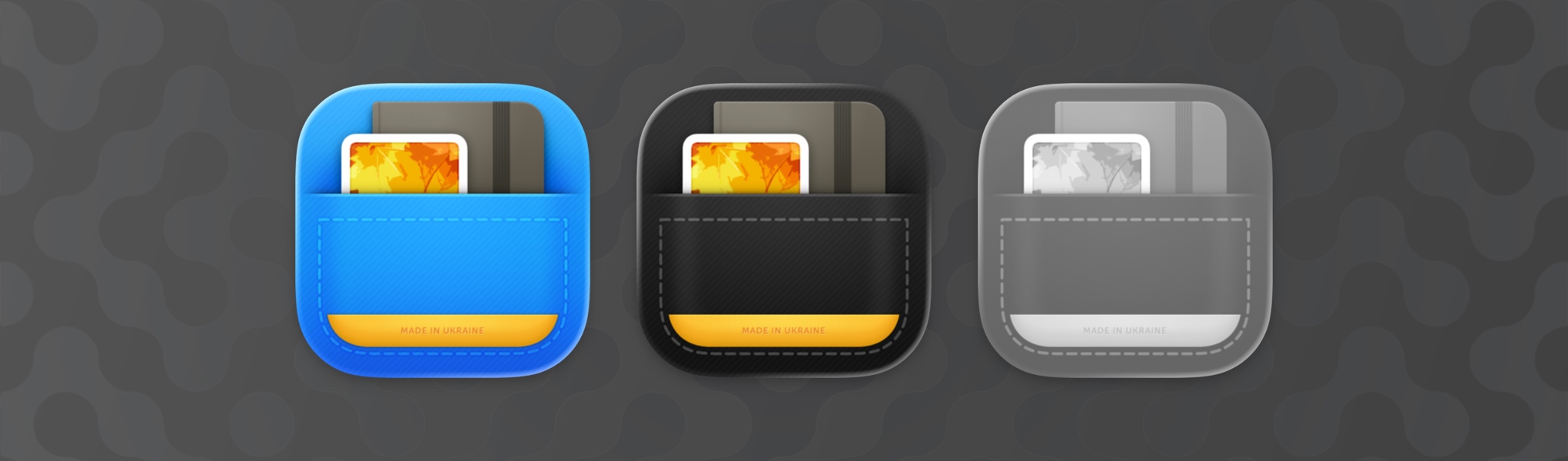
The app icon now also adapts to your Mac’s appearance: Default, Dark, Clear, or Tinted.
Thanks to some careful optimization, Unclutter now animates more smoothly as it opens and closes. And dragging panels around — especially out of the window and back in — is now faster and more fluid.
Shortcuts Integration
Unclutter 2.3 brings 22 new actions for Files, Notes, and Clipboard, so you can build automations and run them from Spotlight or Siri (requires macOS 13 or later).
For example, you can create a new note and fill it with text from other apps. Or you can search your Clipboard History for something you copied earlier and use it in another action. There are plenty of possibilities, and we hope you’ll put these new actions to good use.
To learn more and see how the new actions work, check out our guide to Unclutter Shortcuts.
Clipboard
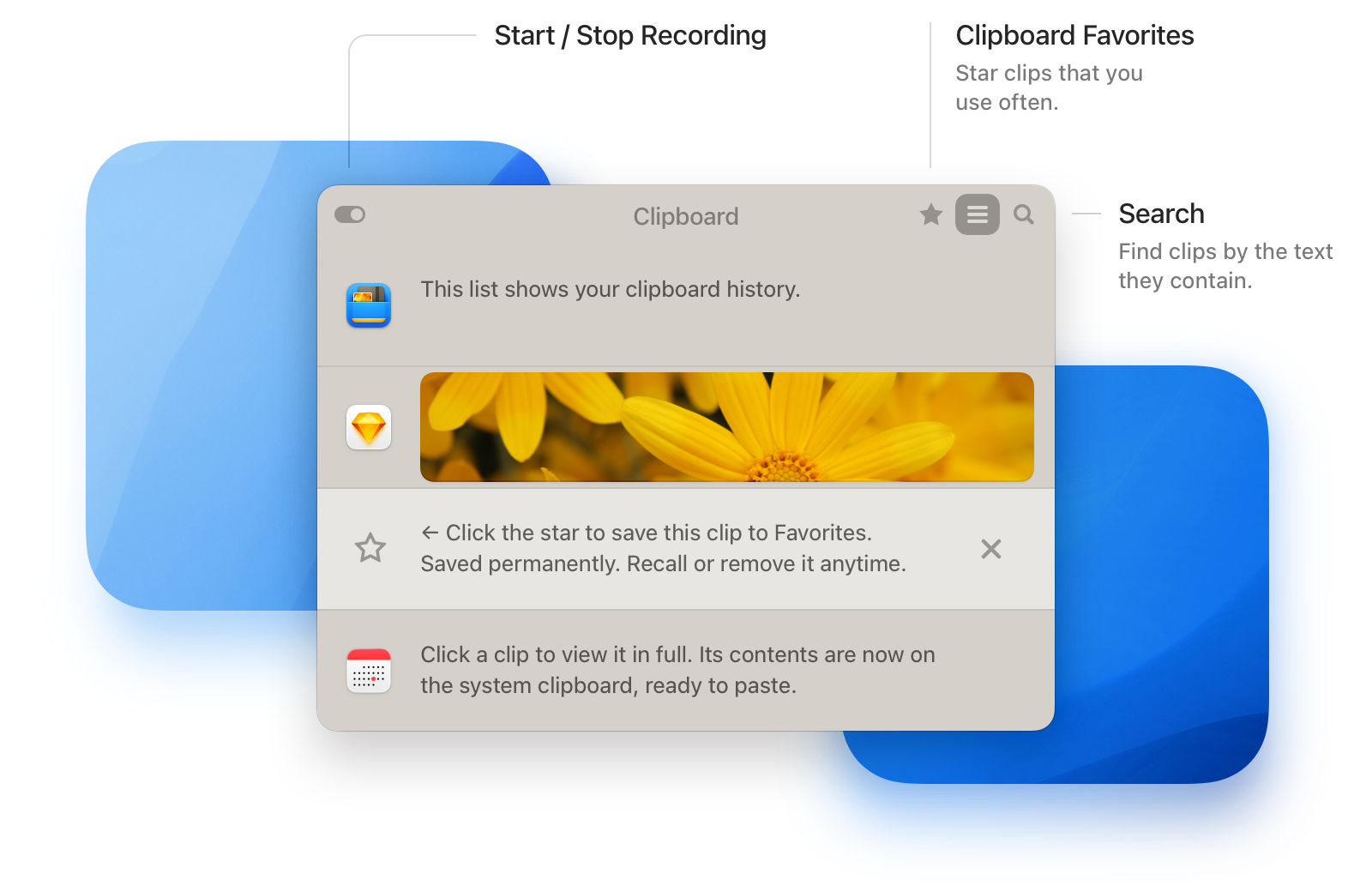
Unclutter Clipboard also has an updated layout and now has its own Search field. You can quickly find clips in History and Favorites by their text, with search results updating as you type. Select the clip you found, and it’s back on your clipboard, ready to paste.
If you’re a web developer or work with colors, you’ll like this one. Unclutter Clipboard now recognizes additional CSS color formats, including HSL, OKLCH, and Display P3. Color clips now display color swatches with transparency.
Files
You can now have macOS save screenshots directly to Unclutter. All your screenshots will land straight in the Files panel instead of cluttering your Desktop. Give it a try — it’s surprisingly convenient, especially since Unclutter is always one swipe away.
To enable this, open Unclutter Settings → Files and turn on ✅ Save screenshots to Unclutter Files (available in the website and Setapp editions). For the Mac App Store version, you can set up the same behavior through macOS screenshot settings.
See our step-by-step screenshot guide for both methods.
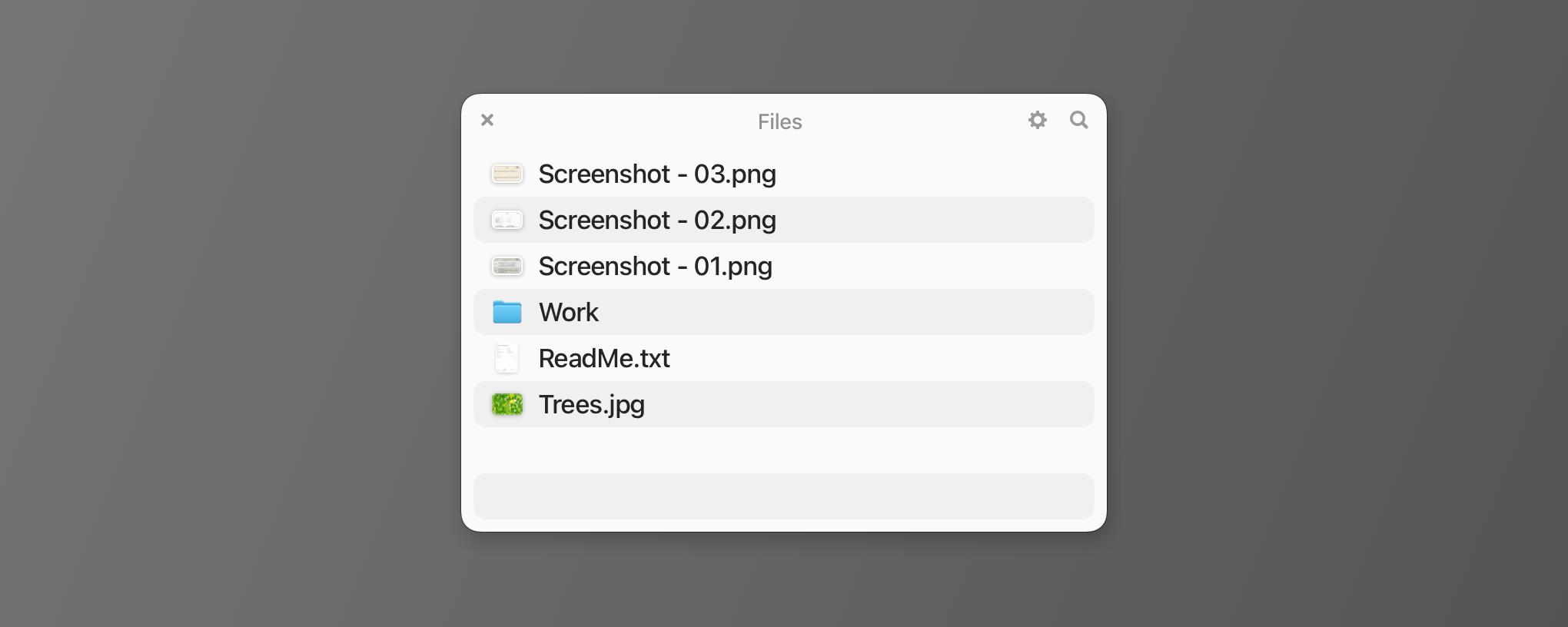
The Files panel also has a redesigned, more Finder-like list view. Alternating row backgrounds, larger text, and clearer selection highlighting make it easier to find what you’re looking for. The new design works nicely in both Light and Dark appearances.
Notes
Unclutter Notes now supports Markdown (.md) files alongside regular .txt files. You can keep both formats in the same Notes panel, open existing Markdown files, and choose which extension to use when creating new notes. This is particularly handy if you keep some of your notes in other apps, such as Obsidian. Unclutter Notes remains a simple plain-text editor.
The Notes panel also has smarter search and additional safeguards to make saving your notes more reliable. For example, if conflicting edits occur, Unclutter will save a separate backup file. And if a note can’t be saved, you’ll have the option to retry or switch to another storage folder.
Lighter and Smoother
Alongside the visible changes, we’ve spent time improving Unclutter under the hood. The app now uses your Mac’s memory more efficiently, reducing memory usage by 200–300 MB on average. We’ve also fixed numerous reported crashes and bugs to improve stability and reliability.
Unclutter 2.3 is available now.
We hope you enjoy the new features and refinements!
Your feedback is always welcome at support@unclutterapp.com.