

By default, macOS saves screenshots to your Desktop. It works well enough, but if you take screenshots regularly, they can quickly pile up among your other files.
Unclutter is a great place to keep them instead. Here’s how to set it up…
By default, macOS saves screenshots to your Desktop. It works well enough, but if you take screenshots regularly, they can quickly pile up among your other files.
Unclutter is a great place to keep them instead. Here’s how to set it up…
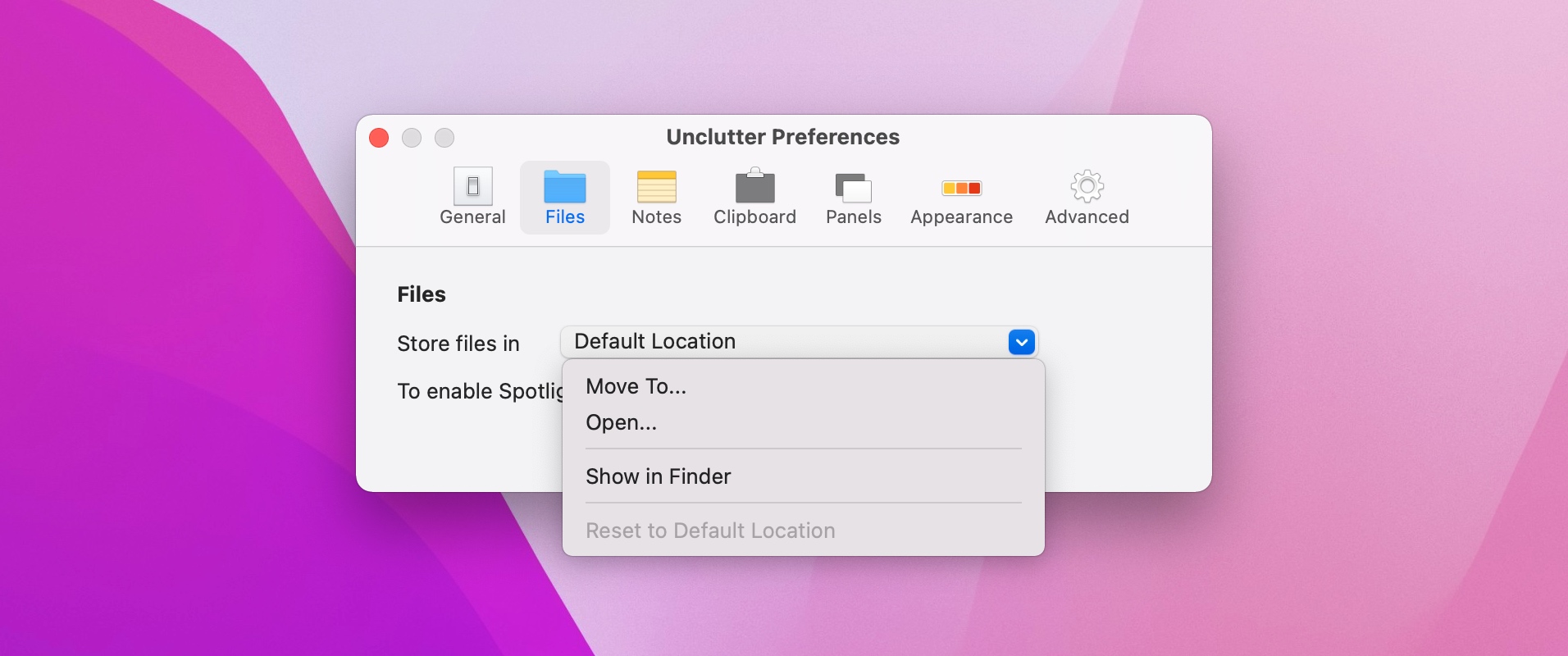
Unclutter is very good with storing your quick files and notes. You have almost instant access to your well-organized data. Among many other features. But how to find these files and notes on your Мас disk? How to change the storage folder and sync your data across devices? Here is a simple way to do that.
Let’s be honest: you spend a lot of time a day sitting at your Mac. For work, study, communication, and entertainment. It makes so much sense if you’d want this experience to be a successful and comfortable one.
So, what are the things that you can do or improve to create your perfect Mac workspace? What should your Mac desk setup even look like? Find out in this article.

Working from home can be convenient, comfortable, and productive – unless your office space at home is a disaster. To help you out, we’ve asked experts to share their best tips on how to get control of your clutter and improve organization.
(Originally published on Redfin Blog by Julia Weaver)

So, you’ve got a hefty task that will take quite some time to finish. And you’ve got to deliver results today. You’re about to go hard. Check out these hacks on how to prepare yourself and your Mac for productive work in 11 simple steps.

Let’s face it: if you’re not a super productive self-disciplined human-machine, it’s not quite easy to work remotely efficiently. But you can train yourself to easily get down to work and be efficient in the process – be it at home or elsewhere.
Instead of (or at least, in addition to) binge-watching your favorite TV shows or surfing social networks when you’ve got work to do, try these 10 working remotely tips.

One of the reasons why you own a Mac is probably the pleasant and smooth user experience it provides. That is something we love Apple products for. And it’s also what the quality of our workflow depends on.
Smooth and productive Mac workflow – how exactly is that? It’s when you can stay focused on your main task while easily switching to the other ones, do your job on Mac with minimal distractions, less effort and time spent.
In this article, we want to share with you some tips and apps that will help you maintain a more convenient, efficient and seamless Mac workflow.

If you are reading this, chances are you spend quite a good chunk of your day at a Mac screen. With time, your Desktop gets filled with litter, background picture gets boring and something definitely needs a refreshment.
So how do you make your Mac Desktop look cool & fresh again?
Let’s start with a few tips on how to clean up your Mac desktop and keep it tidy. Then we’ll add some juice and adjustments.
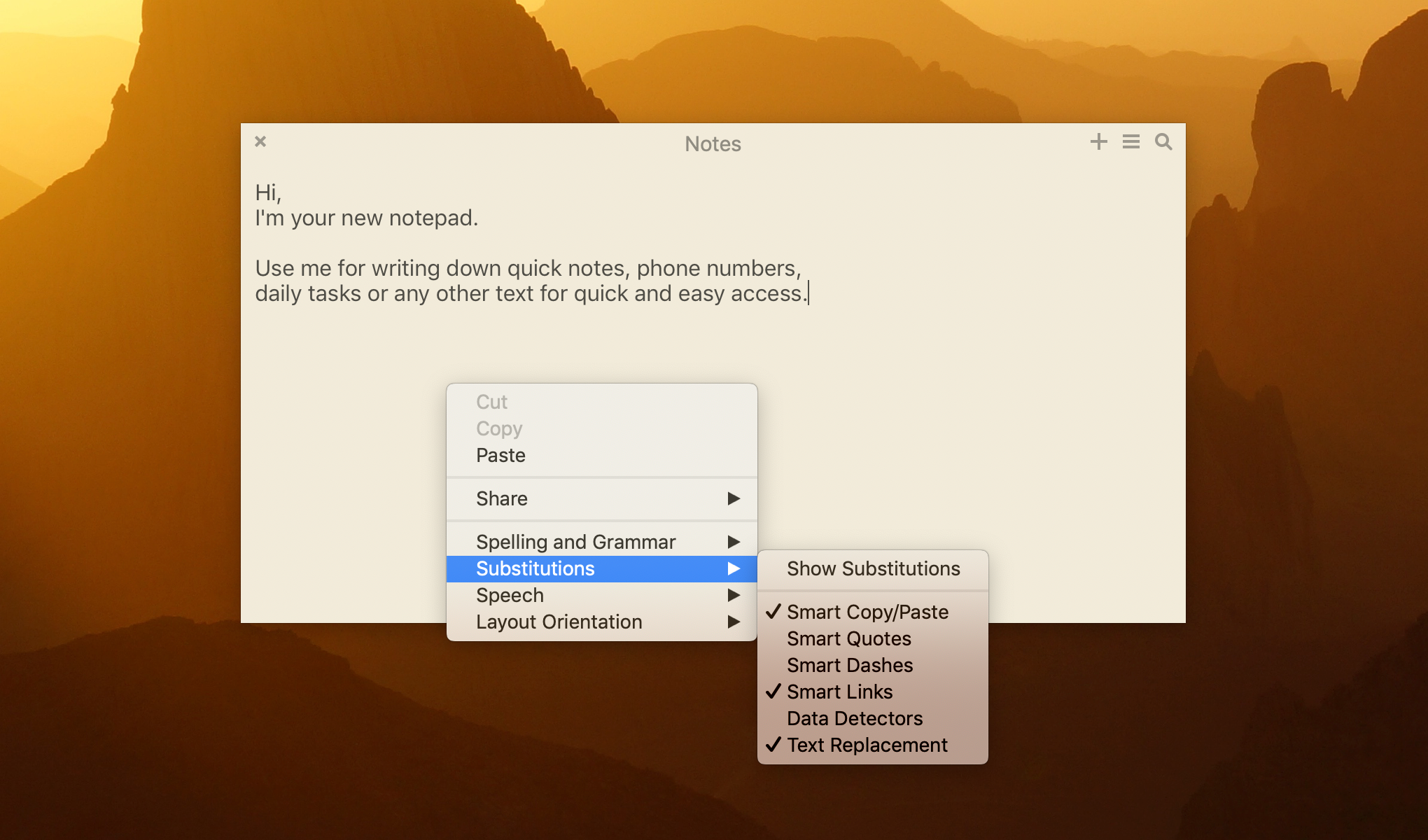
If you ever notice your quotes, dashes or even some text fragments are changed in Unclutter note or clipboard text editor, this is a macOS Text Substitutions in action.
Yes, your Mac has a powerful set of tools to help you work with text. This includes spell checking, auto-correction, quick text substitution and other useful functions. Usually you adjust these settings in System Preferences → Keyboard → Text (tab).
When you launch Unclutter for the first time, the app reads these settings from system and stores in its own preferences. Now, if you need to change how Unclutter handles your text, here is what you should do.
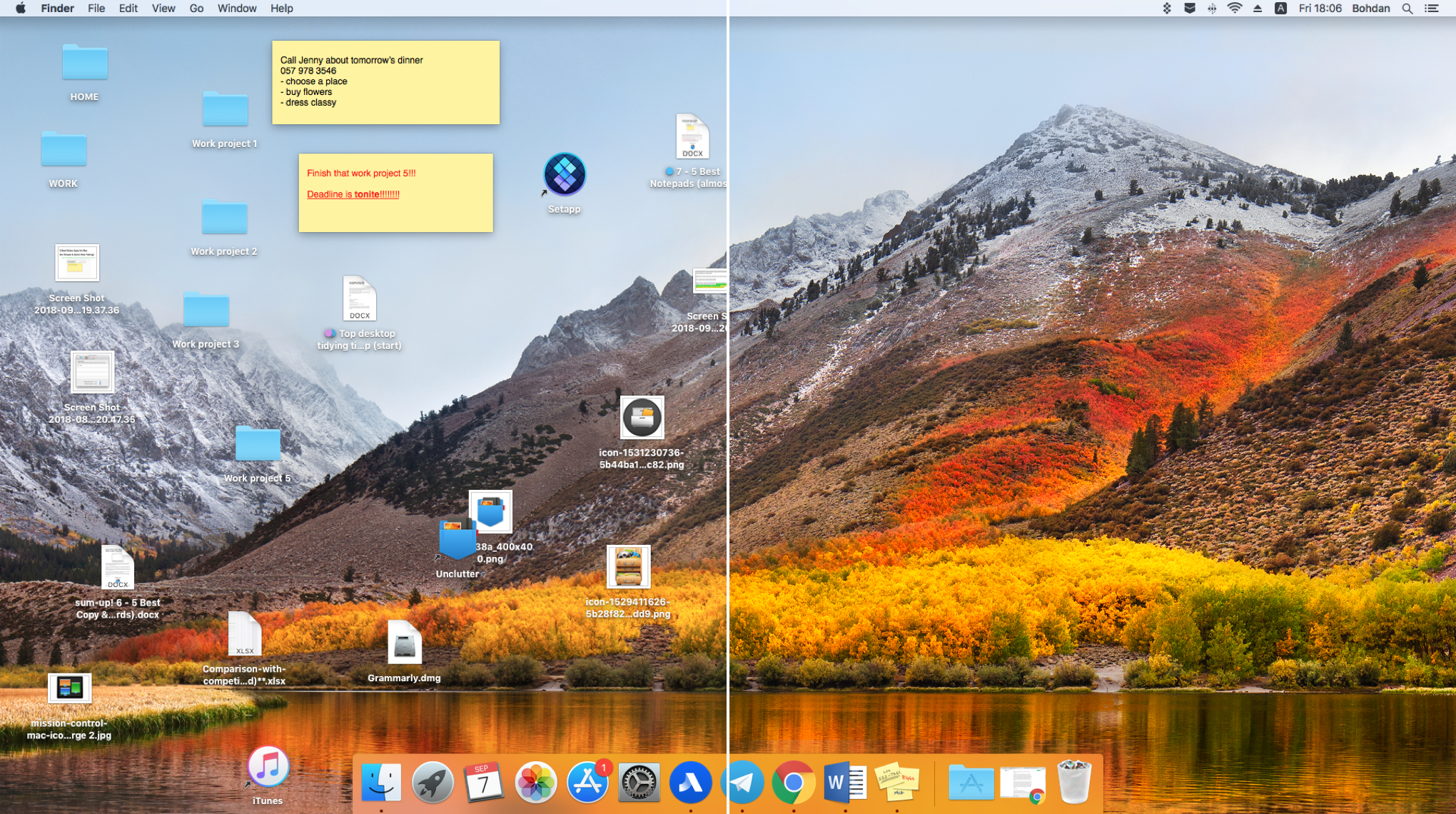
Just take a look at this desktop on the left. Messy, cluttered. Random items arrangement (no perfectionist would bear). And that’s how desktops of Mac users happen to look like. If your desktop often resembles a similar picture, you may want to do something about it. And here are some great tips to make your Mac Desktop tidy and organized…